Helpdesk Jira Integration
Jitbit's helpdesk Jira integration lets your support agents convert any helpdesk ticket into a Jira issue with a single click - no copy-pasting, no switching tabs. The ticket and the Jira issue stay linked automatically, so both your support and development teams always have the full context they need.
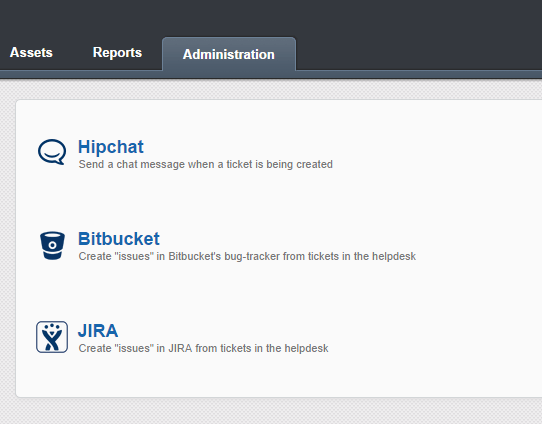
See the full list of Jitbit third-party integrations.
Why integrate your helpdesk with Jira
Support teams and development teams often work in separate tools. Customers report bugs through the helpdesk, and engineers track them in Jira. Without an integration, agents waste time manually creating Jira issues, copying ticket details, and pasting links back and forth.
The Jitbit helpdesk Jira integration eliminates that friction:
- One-click ticket escalation - convert a helpdesk ticket to a Jira issue directly from the ticket page
- Automatic cross-linking - the Jira issue includes a link back to the original ticket, and the ticket displays the Jira issue details
- Faster bug resolution - developers get the full customer conversation and context without leaving Jira
- Works with Jira Cloud and Server - connect to your Atlassian Cloud instance or a self-hosted Jira installation
Setting up the Jira integration in Jitbit Helpdesk
Configuration takes under two minutes. Here is how:
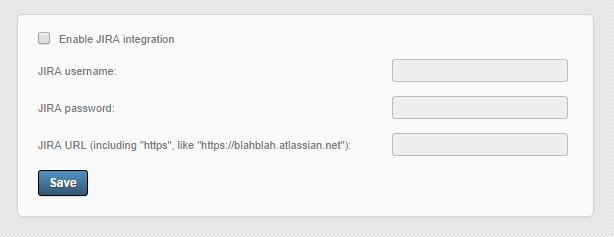
- Log in to Jitbit Helpdesk with administrator privileges.
- Navigate to Administration → Integrations → Jira.
- Check the "Enable Jira integration" box.
- Enter your Jira username, API token (or password for Jira Server), and the full URL of your Jira installation - for example
https://yourcompany.atlassian.netfor Jira Cloud. - Click Save.
Note: The Jira URL must be accessible from the helpdesk server. For the on-premise version of Jitbit Helpdesk, make sure your Jira instance is reachable on the network. For the SaaS version, your Jira URL needs to be open to the Internet.
How the helpdesk-to-Jira workflow works
Once the integration is active, every helpdesk ticket displays a "Create Jira Issue" button in the sidebar. Here is what happens when an agent clicks it:
- A dialog appears prompting the agent to select a Jira project.
- Jitbit creates a new issue in that project. The issue body automatically includes a link to the original helpdesk ticket.
- The "Create Jira Issue" button is replaced with the Jira issue key and a direct link to the issue, so the agent can jump to it at any time.
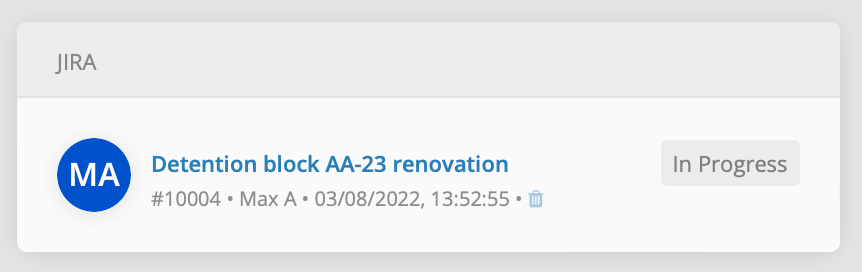
This two-way linking means support agents can track the status of a bug fix directly from the ticket they are working on, while developers always know which customer conversation triggered the issue.
When to use the helpdesk Jira integration
The integration is especially useful for teams that:
- Need to escalate bugs or feature requests from customer support to engineering
- Want a clear audit trail connecting customer complaints to development work
- Run agile sprints in Jira and need customer-reported issues fed into the backlog
- Use the Jitbit + Jira combination rather than a single monolithic tool
Other developer-tool integrations
Jira is not the only developer platform Jitbit connects to. If your team uses other tools, check out these integrations:
- Bitbucket and GitHub integration - create linked issues in Bitbucket or GitHub repositories from helpdesk tickets
- GitLab integration - convert tickets into GitLab issues the same way
All developer-tool integrations work the same way: one click to create a linked issue, with automatic cross-references between the helpdesk ticket and the issue tracker.
Ready to connect your helpdesk to Jira? Try Jitbit Helpdesk free and set up the integration in minutes.
Explore Jitbit Helpdesk
Helpdesk features Hosted vs On-Premises Zendesk vs. Jitbit Compare alternatives Outlook Help Desk A Simple Support Ticket System System Requirements MS Teams and other integrations Help Desk Demo Email ticketing system GDPR Compliant Help Desk Software How does it work? HelpDesk Source Codes ASP.NET help desk Helpdesk API Case Studies Customer reviews User guide FAQ Version history Download now Pricing