Help Desk Software Workflow: How Tickets Move from Submission to Resolution
Understanding the help desk software workflow is the first step toward faster, more organized customer support. Every help desk follows the same core pattern: a user submits a request, an agent resolves it, and the system tracks every step in between. Below is a detailed breakdown of how this workflow operates, including the key terminology, the ticket lifecycle, and the automation capabilities that make modern help desks powerful.
Key help desk terminology
Before diving into the workflow, here are the core concepts you will encounter in any help desk software:
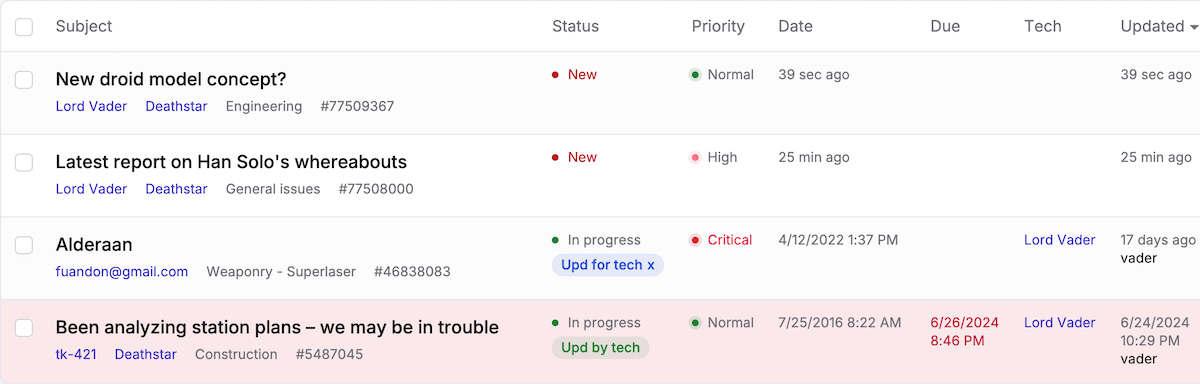
- Ticket. A ticket is a support request submitted by a user. It could be a problem report, a question, a feature request, or a general inquiry. Tickets are typically created via email -- when a message arrives, the system converts it into a new ticket. If the message is a reply, it gets appended to an existing ticket instead.
- Category. A category is a container that organizes your tickets by topic, department, or project. Think of categories as folders that help your team find and prioritize work.
- Technician (agent). A technician (also called a "tech" or "agent") is the person who handles tickets -- responding to users, troubleshooting issues, and driving each request toward resolution.
The help desk ticket lifecycle
Here is the typical help desk software workflow from start to finish:
- A user submits a ticket to the help desk application -- either through the web portal, by sending an email to a monitored support mailbox, or via the live chat widget.
- The support team is notified of the new ticket instantly by email, browser push notifications, SMS, or mobile push alerts.
- A technician claims the ticket. By taking ownership, the agent signals to the rest of the team that they are handling this request -- preventing duplicate work and collisions.
- The technician and user collaborate by:
- Posting replies and status updates to the ticket
- Attaching files and screenshots
- Adding other team members (or managers) to the conversation when escalation is needed
- The ticket is resolved and closed. Once the issue is fixed, the technician (or the user) closes the ticket. The system records resolution time and other metrics for reporting.
- The solution is published to the knowledge base. Optionally, the resolved ticket can be converted into a knowledge base article with a single click -- so future users can find the answer without opening a new ticket.
User roles in the help desk workflow
A well-structured help desk software workflow depends on clearly defined roles:
- End users submit tickets and track their progress through a self-service customer portal. They can also search the knowledge base before creating a request.
- Technicians / Agents handle day-to-day ticket resolution, communicate with users, and collaborate with other agents on complex issues.
- Administrators configure categories, set up SLA rules, manage user permissions, create automation rules, and monitor team performance through reports and dashboards.
Custom statuses and workflow automation
The standard "New > In Progress > Closed" workflow covers most scenarios, but real-world support often requires more nuance. An administrator can add custom statuses to the help desk -- for example, "Awaiting Manager Approval," "On Hold - Waiting for Vendor," or "Escalated to Engineering" -- to mirror your team's actual process.
Beyond custom statuses, you can create automation rules that trigger actions automatically based on ticket events. For example:
- When a ticket becomes overdue, notify the administrator and change its priority to "High"
- When a ticket is created from a VIP customer's email domain, assign it to a senior agent immediately
- When a ticket has had no reply for 48 hours, send a follow-up reminder to the assigned technician
This "if-this-then-that" engine -- sometimes called macros or workflow automation in other tools -- eliminates repetitive manual tasks and ensures nothing falls through the cracks. Jitbit supports dozens of triggers, conditions, and actions to build workflows as simple or as complex as your team needs.
Why a defined workflow matters
Without a structured help desk software workflow, support requests get lost in overflowing inboxes, agents duplicate each other's work, and customers wait too long for answers. A proper workflow gives your team:
- Accountability -- every ticket has a clear owner and a visible status
- Consistency -- the same process applies whether you handle 10 tickets a day or 10,000
- Measurability -- resolution times, first-response speed, and agent workload are all tracked automatically
- Scalability -- automation handles the growing volume so your team can focus on solving problems, not managing them
Try Jitbit Helpdesk free and set up a workflow that matches how your team actually works -- with email integration, automation rules, SLA tracking, and a built-in knowledge base, all included out of the box.