Ticket Templates for Help Desk - Setup Guide and Use Cases
A ticket template is a pre-defined form that automatically populates the subject, body, and custom fields when a user submits a new support request. Instead of starting from a blank form every time, your end-users see guided prompts that capture exactly the information your team needs to resolve issues faster.
Jitbit Help Desk supports ticket templates out of the box - both through custom fields and through pre-filled category templates. Below is a step-by-step guide to setting them up, along with real-world use cases.
The default new-ticket form
Here is the standard "new ticket" form in Jitbit Help Desk:
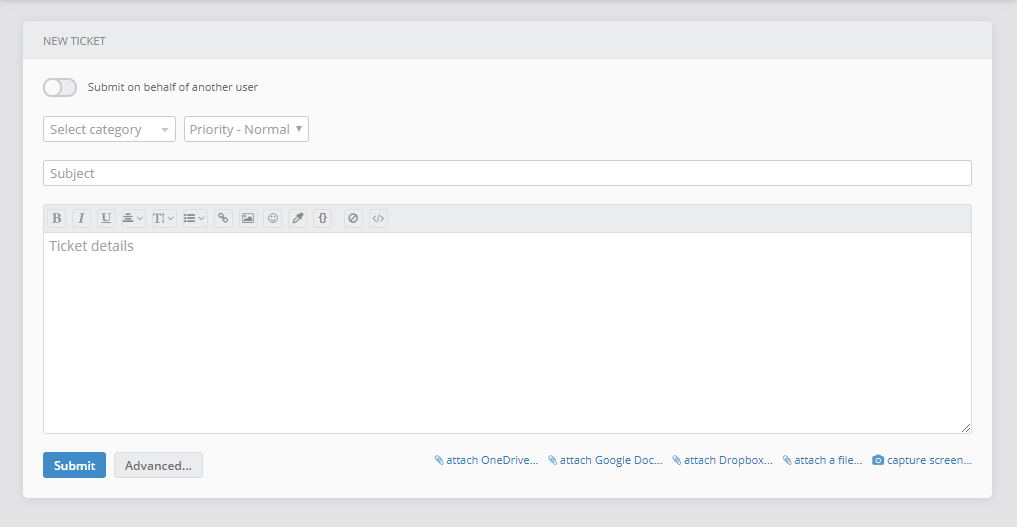
Out of the box, it collects a subject and description. That works fine for simple requests, but most support teams need additional, structured data - like an order number, software version, or priority level. That is where ticket templates come in.
Step 1: Add custom fields to the ticket template
Custom fields let you extend the ticket form with dropdowns, text inputs, date pickers, checkboxes, and more. To add them:
- Go to Administration
- Select Custom fields
- Create one or more fields needed for your template (e.g. "Order Number", "Software Version", "Steps to Reproduce")
- Optionally assign the new fields to specific ticket categories so they only appear for relevant request types
Here is what the ticket form looks like after adding two custom fields:
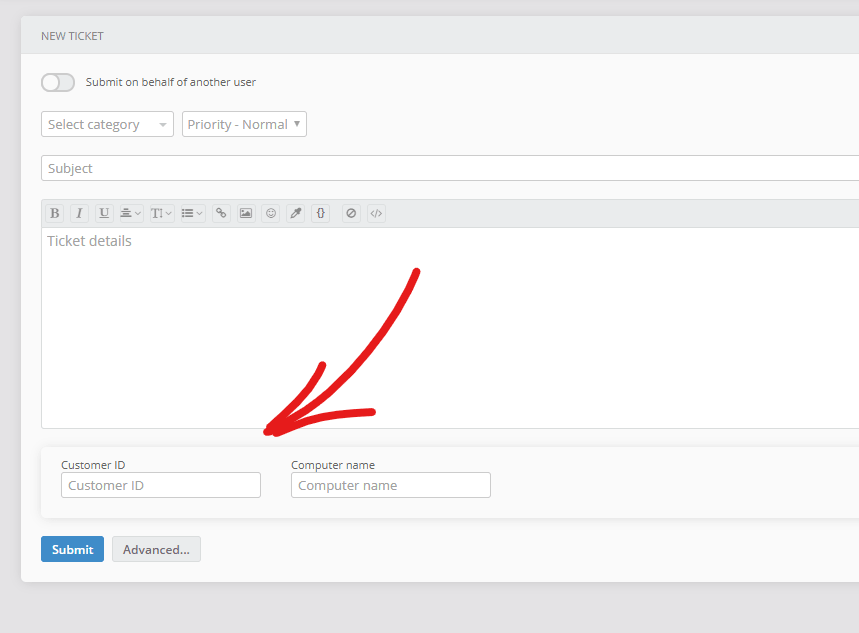
Your customers now see structured input fields in the UI, guiding them to provide the details your agents need - no back-and-forth emails required.
Step 2: Create a pre-filled ticket template per category
Beyond custom fields, Jitbit lets you pre-fill the ticket subject and body text based on the selected category. This is especially useful when different request types require different information.
To set up a pre-filled ticket template:
- Go to Administration
- Go to Ticket categories
- Select a category and fill in the "Pre-filled ticket template" fields for both the subject and body
Here is an example of a configured category template:
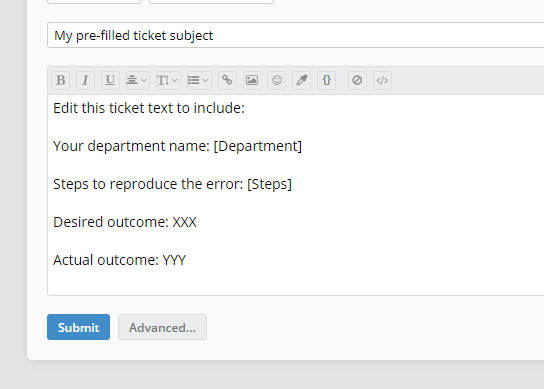
When a user selects that category, the form auto-populates with your template text. The user fills in the blanks, and your team receives a consistently structured request.
To remove a ticket template from a category, simply clear the text (set it back to empty).
Ticket template use cases
Ticket templates eliminate guesswork for both your users and your support agents. Here are the most common scenarios where they make a real difference:
Bug reports
Pre-fill the template with structured prompts like "Steps to reproduce," "Expected behavior," "Actual behavior," and "Software version." This saves your engineering team from chasing down missing details on every report.
Feature requests
Guide users to describe the problem they are solving, the desired outcome, and business impact. Structured feature requests are easier to prioritize and route to the right product team.
IT service requests
For internal IT help desks, templates can prompt for equipment type, asset tag, location, and urgency level. Combined with asset management, your IT team gets full context without a single follow-up question.
Onboarding and access requests
Use templates to collect employee name, department, required software, and manager approval status. This turns a multi-email process into a single, standardized request.
Customer feedback and complaints
Template the form with fields for order number, date of incident, and desired resolution. Your support team can respond faster when they have every detail from the first message.
Why ticket templates improve support quality
Without templates, support teams spend a significant portion of their time asking follow-up questions - "What version are you on?", "Can you share your account ID?", "What were the steps leading up to the issue?" Every follow-up adds hours to the resolution cycle.
With well-designed ticket templates, you:
- Reduce first-response time - agents have the information they need from the start
- Improve ticket routing - structured data makes it easy to auto-assign tickets via automation rules
- Maintain consistency - every request follows the same format, making reporting and trend analysis more accurate
- Lower ticket volume - when users are guided to provide complete information, fewer duplicate or incomplete tickets are created
Combining templates with automation
Ticket templates become even more powerful when paired with Jitbit's automation engine. For example:
- Auto-assign tickets to a specific agent or team based on a custom field value (e.g. route all "Billing" requests to the finance team)
- Set ticket priority automatically when a custom field like "Severity" is set to "Critical"
- Send a canned response with next steps when a ticket matches a specific template pattern
- Trigger an SLA timer based on the category and priority captured through the template
This combination of structured data collection and automated workflows lets your team handle higher ticket volumes without adding headcount.
Get started with ticket templates
Jitbit Help Desk makes it straightforward to set up ticket templates - no coding or complex configuration required. Whether you run a customer-facing support desk or an internal IT help desk, templates help your team collect the right data from the first interaction.
Try Jitbit Help Desk free and set up your first ticket template in minutes.
Explore Jitbit Helpdesk
Helpdesk features Hosted vs On-Premises Zendesk vs. Jitbit Compare alternatives Outlook Help Desk A Simple Support Ticket System System Requirements MS Teams and other integrations Help Desk Demo Email ticketing system GDPR Compliant Help Desk Software How does it work? ASP.NET help desk Helpdesk API Case Studies Customer reviews User guide FAQ Version history Download now Pricing