How to Set Up Office 365 GCC High with Jitbit Helpdesk
Government agencies and contractors using Office 365 GCC High (Microsoft Government Cloud) need a helpdesk that supports their compliance requirements. Jitbit Helpdesk fully supports Office 365 GCC High for both inbound and outbound email, using modern OAuth 2.0 authentication.
Since Microsoft has retired Basic Authentication for SMTP, IMAP, and the Office 365 API, all connections now require OAuth 2.0. Jitbit Helpdesk supports the O365 OAuth flow out of the box and our app is already listed in the "Global" Microsoft cloud. However, GCC High environments require you to create a dedicated app registration in the GCC Azure portal and provide its details to Jitbit. This guide walks you through the entire process.
Step 1: Create an App Registration in Azure for GCC High
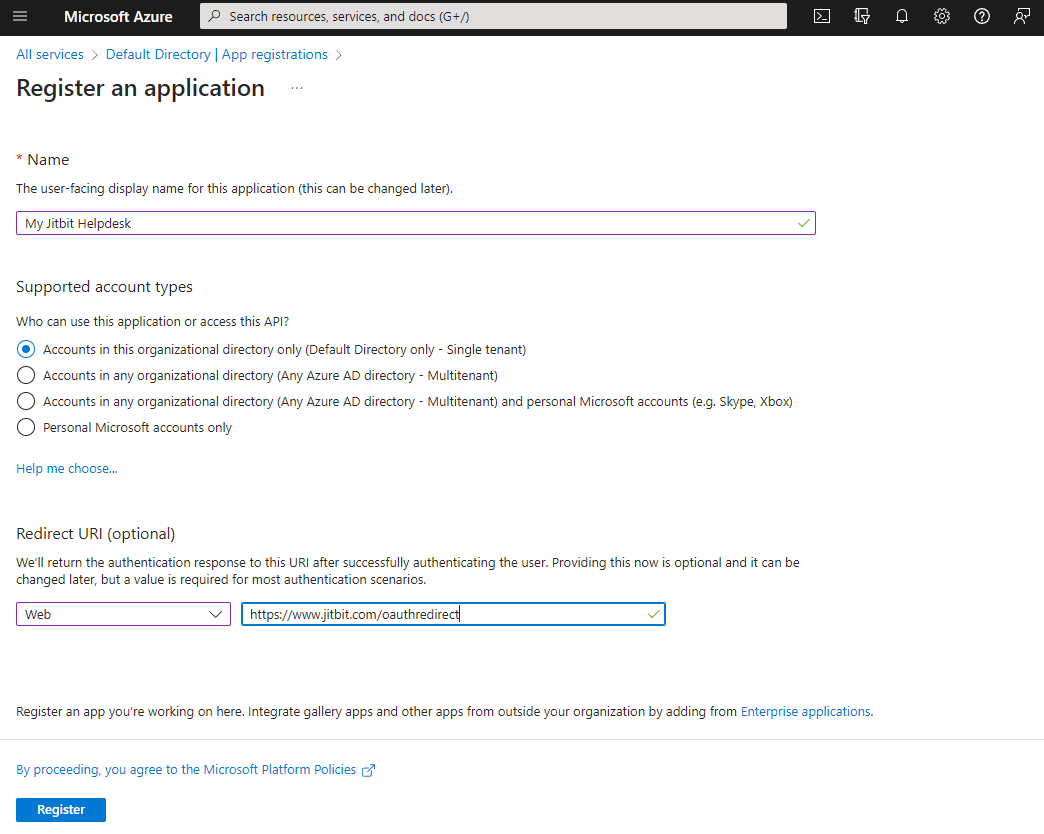
To connect Jitbit Helpdesk to your Office 365 GCC High tenant, start by registering an application in Azure:
- Open https://portal.azure.com/
- Navigate to Azure Active Directory
- Click App registrations
- Click New registration
- Enter a friendly name (e.g., "Jitbit Helpdesk")
- Set the platform to "Web" and the Redirect URI to
https://www.jitbit.com/oauthredirect
Step 2: Configure API Permissions for Microsoft Graph
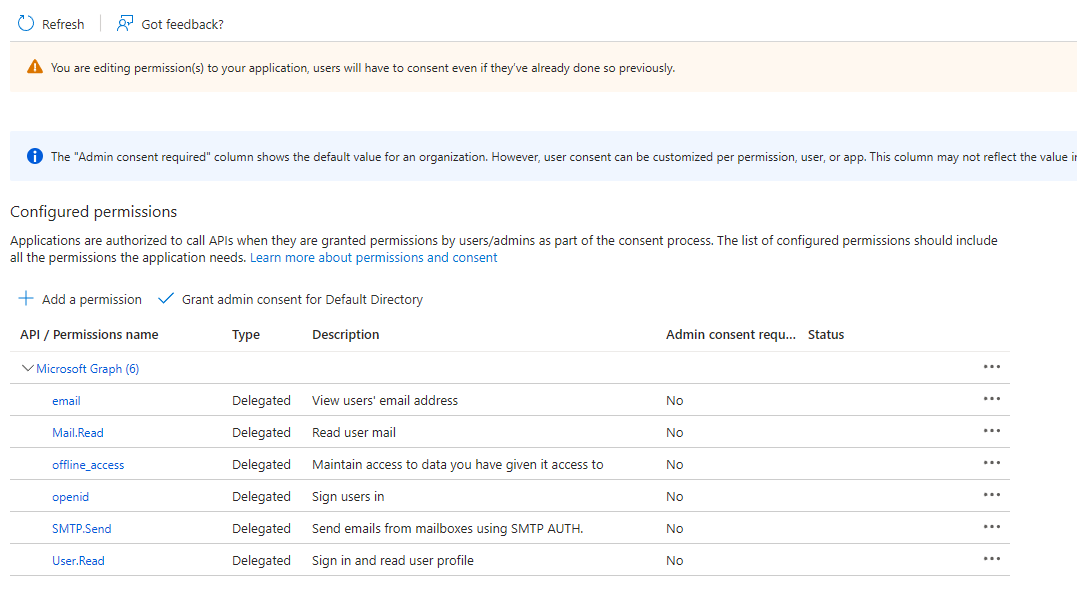
Next, grant the app the permissions Jitbit needs to read mail and send via SMTP:
- Select API permissions
- Click Add a permission
- Choose Microsoft Graph
- Select Delegated permissions
- Search for and add these permissions:
email,offline_access,openid,Mail.Read,SMTP.Send - Click Grant admin consent to approve the permissions
Step 3: Generate a Client Secret
You will need a client secret to authenticate Jitbit with your GCC High tenant:
- Select Certificates & secrets
- Click New client secret
- Copy the generated Value and save it securely - you will need it in Jitbit Helpdesk
- Go to Overview and copy the Application (client) ID as well
Step 4: Connect Jitbit Helpdesk to Office 365 GCC High
With your Application ID and Client Secret in hand, configure Jitbit Helpdesk to use your GCC High tenant for email.
Outbound email (SMTP)
Navigate to Admin > Email > Outgoing email settings. Select "Office 365" as the provider and check the GCC checkbox. Enter the Client ID and Client Secret from the previous steps. Jitbit will use the GCC High OAuth endpoints automatically.
Inbound email
Go to Admin > Email > Edit incoming mailboxes and add a new mailbox. Select Office 365 GCC as the server type. The app will prompt you for the Client ID and Secret (these will be prefilled if you already configured outbound SMTP).
Once configured, all incoming emails to that mailbox are automatically converted into helpdesk tickets, and all outbound replies are sent through your GCC High tenant.
SAML Single Sign-On with GCC High
No special adjustments are needed for SAML SSO via GCC High. When you set up SAML in Jitbit, you specify Identity Provider URLs directly, so SSO works out of the box regardless of whether you use the global or GCC High cloud.
Why Government Teams Choose Jitbit Helpdesk
Jitbit Helpdesk is trusted by government agencies and defense contractors that need a secure, compliant ticketing system with full Office 365 GCC High support. Beyond the GCC integration, Jitbit offers:
- On-premise deployment - host the helpdesk on your own servers for maximum control. Learn more.
- Active Directory integration - authenticate agents and end-users against your existing directory. Learn more.
- Full Office 365 integration - email, SSO, and calendar sync across the Microsoft ecosystem. Learn more.
- GDPR and compliance features - data retention policies, audit logs, and encryption at rest. Learn more.
Explore Jitbit Helpdesk or start a free trial to see how it works with your GCC High environment.
Explore Jitbit Helpdesk
Helpdesk features Hosted vs On-Premises Zendesk vs. Jitbit Compare alternatives Outlook Help Desk A Simple Support Ticket System System Requirements MS Teams and other integrations Help Desk Demo Email ticketing system GDPR Compliant Help Desk Software How does it work? HelpDesk Source Codes ASP.NET help desk Helpdesk API Case Studies Customer reviews User guide FAQ Version history Download now Pricing