Microsoft Teams Help Desk Integration - Jitbit
Jitbit Helpdesk sends ticket notifications and updates directly into Microsoft Teams channels through its native, two-way app - published in the Teams Store as Jitbit Helpdesk Bot. Your users create tickets, your technicians take, answer and close them, and everything stays in sync with the helpdesk both ways - without anyone leaving Teams.
If your organization runs on Microsoft 365, Teams is where your people already are. The bot closes the gap between where they ask for help and where your tickets land.
Create and Track Tickets from Teams
- Create tickets from Teams - type
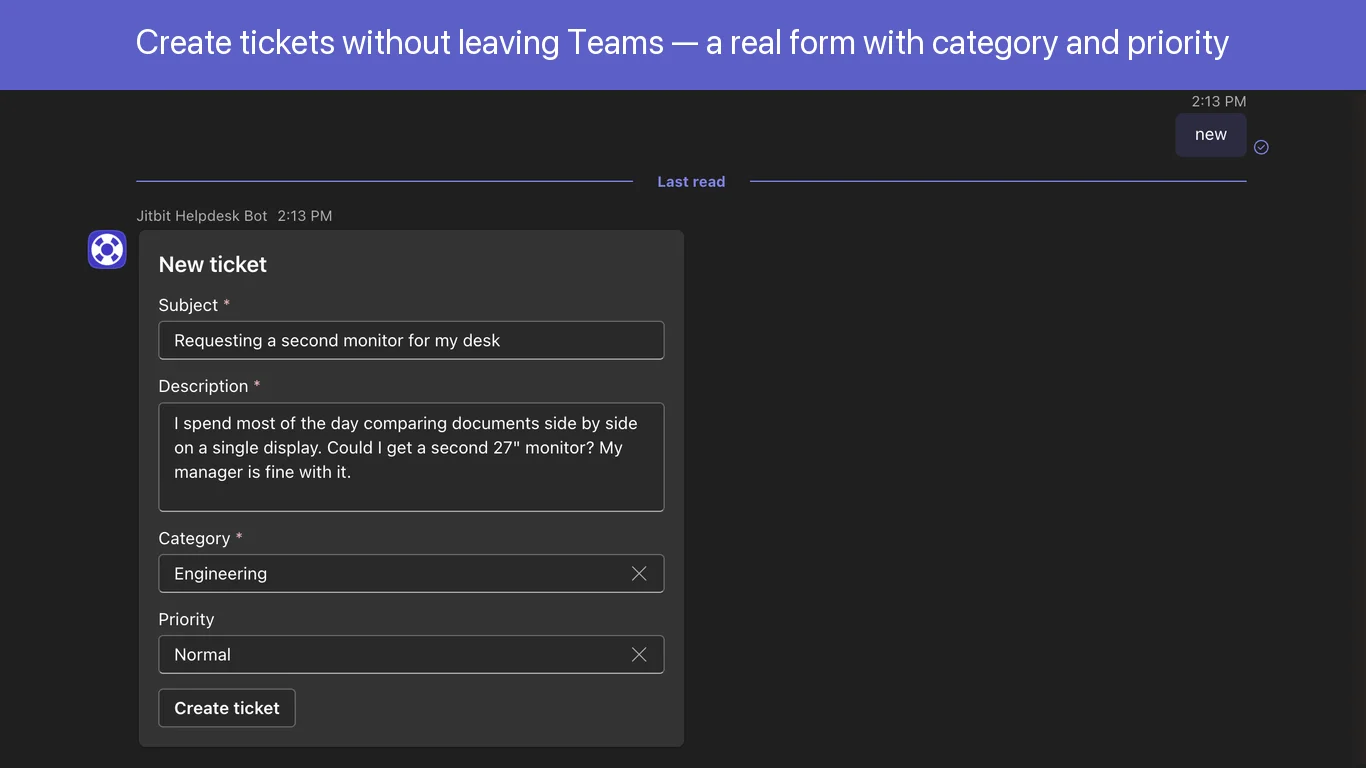
newin a chat with the bot and get a proper ticket form with subject, description, category and priority. Or turn any Teams message into a ticket straight from the "..." message menu - the form comes prefilled with the message text - Track your tickets - type
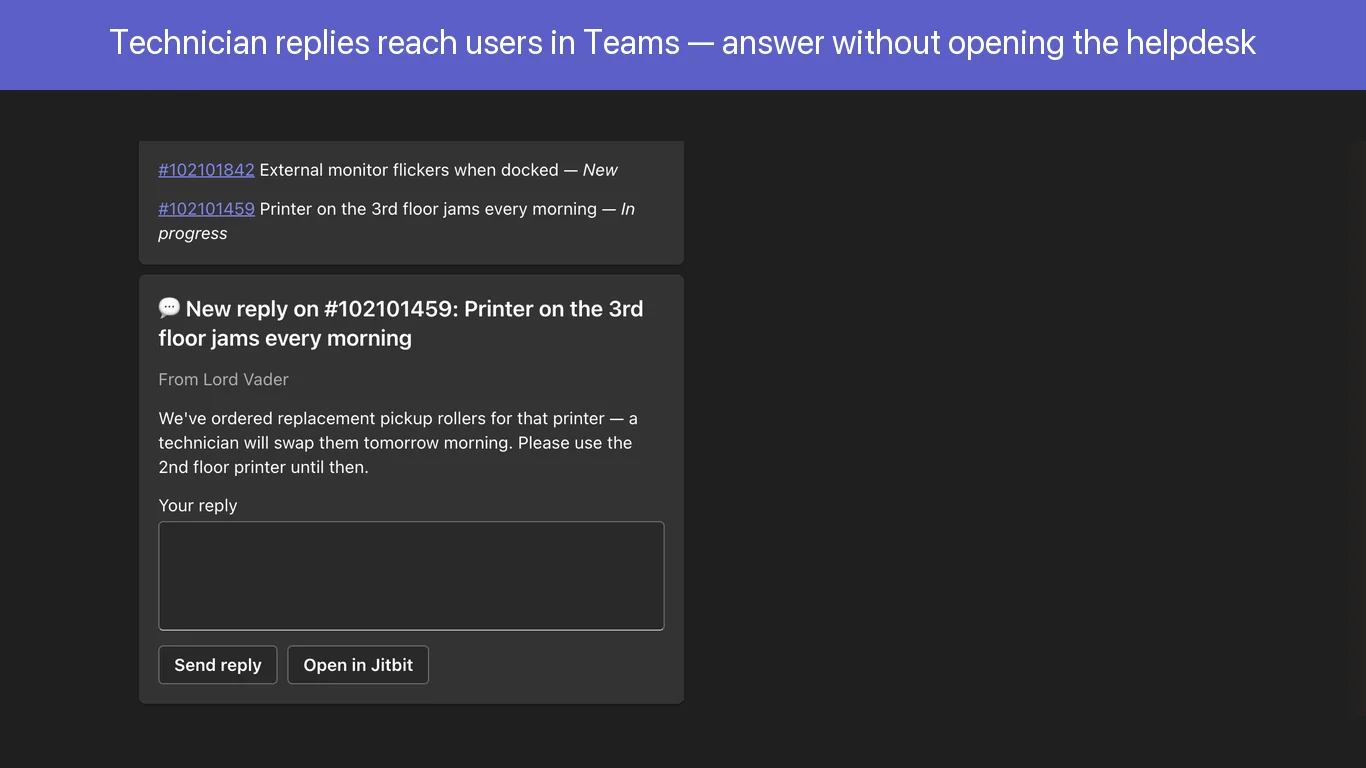
my ticketsfor a live list of your open requests with statuses and links - Get replies where you are - technician answers arrive as cards in your bot chat, with an inline reply box. Type your answer right into the card and it lands on the ticket
Ticket Notifications and Updates in Teams Channels
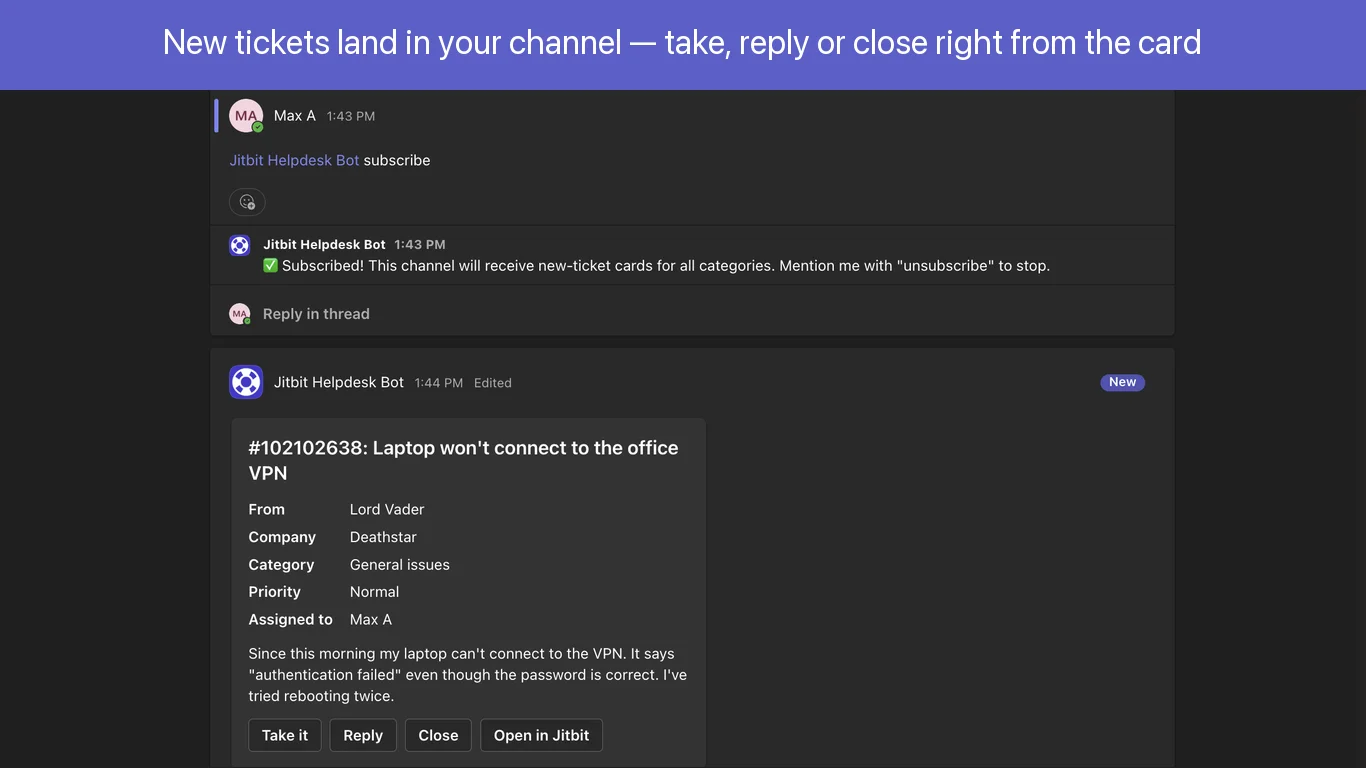
- Actionable ticket cards in channels - @mention the bot in any channel and type
subscribe(all categories, or just the ones you list) to get a card for every new ticket with Take it / Reply / Close buttons - Cards update themselves - when a ticket is taken, answered or closed - from Teams or from the helpdesk web app - the card updates in place, so the channel always shows the current state
- Permissions that actually hold - every button click is permission-checked server-side against the technician's helpdesk account, the same rules as the web app
Setting Up the Integration for Teams
No Azure configuration, no webhooks, no manifest editing. Cloud customers connect in about two minutes:
- Install the botInstall Jitbit Helpdesk Bot from the Teams app store (Teams > Apps > search "Jitbit"). Better yet, have your Microsoft 365 admin deploy it org-wide from the Teams admin center - that way users get ticket replies in Teams even if they never messaged the bot first
- Generate a pairing commandIn the helpdesk, open Administration > Integrations > MS Teams and click "Generate pairing command" - you'll get a one-time command like
connect aB3dE5fG7hJ9 - Connect in TeamsPaste the command into a chat with the bot. It replies "Connected" - done
The pairing links your Microsoft 365 tenant to your helpdesk, and users are matched to helpdesk accounts by their Microsoft 365 email automatically - accounts are auto-created when someone submits their first ticket, exactly like the email channel.
How Support Teams Use the Bot
A few common patterns we see from Jitbit customers:
- Dedicated support channel - subscribe a "Support tickets" channel so agents get a live feed of every incoming request, take tickets with one click, and answer them right from the card
- Category routing - subscribe different channels to different ticket categories (
subscribe 1,2), so the network team only sees network tickets - Employee self-service - staff message the bot or use the message menu to file requests without learning a new tool; replies come back to them in Teams
- Cross-team visibility - engineering and management follow the support channel and see ticket state at a glance from the self-updating cards, no helpdesk seats needed
What About the Old Webhook Notifications?
Jitbit's previous MS Teams integration posted one-way "new ticket" notifications to a channel via an incoming webhook. That integration is deprecated, and Microsoft retired Office 365 connectors in Teams in May 2026. Use the bot for new setups and to replace legacy connector-based notifications - it adds ticket creation, replies and actions right in Teams.
Works Alongside Other Jitbit Integrations
The app for Teams is just one of many ways Jitbit Helpdesk connects to your existing tools. You can also integrate with:
- Slack - the same two-way bot, for organizations that use Slack instead of (or alongside) Teams
- Jira - create Jira issues directly from support tickets
- AI features - generate AI-powered ticket replies, summaries and more
- Zapier - connect Jitbit to 5,000+ apps with no-code workflows
Get Started
The app for Microsoft Teams is included with all Jitbit Helpdesk plans - both the SaaS hosted version and the on-premise self-hosted version. A Jitbit Helpdesk account is required (paid, with a free trial). Install the bot and manage your tickets where your team already works.
Explore Jitbit Helpdesk
Helpdesk features Hosted vs On-Premises Zendesk vs. Jitbit Compare alternatives Outlook Help Desk A Simple Support Ticket System System Requirements MS Teams and other integrations Help Desk Demo Email ticketing system GDPR Compliant Help Desk Software How does it work? HelpDesk Source Codes ASP.NET help desk Helpdesk API Case Studies Customer reviews User guide FAQ Version history Download now Pricing